Getting started: the survey dashboard
Topics
The Audience Answers survey dashboard is where you'll find insights and data from both your current audience survey, and any surveys your organisation has carried out in the past.
How to access the dashboard
- Head to audienceanswers.org and log in.
(If you don't have a personal log in set up, please contact us)
- Scroll about halfway down the page, and you'll find a section titled 'Survey Report'
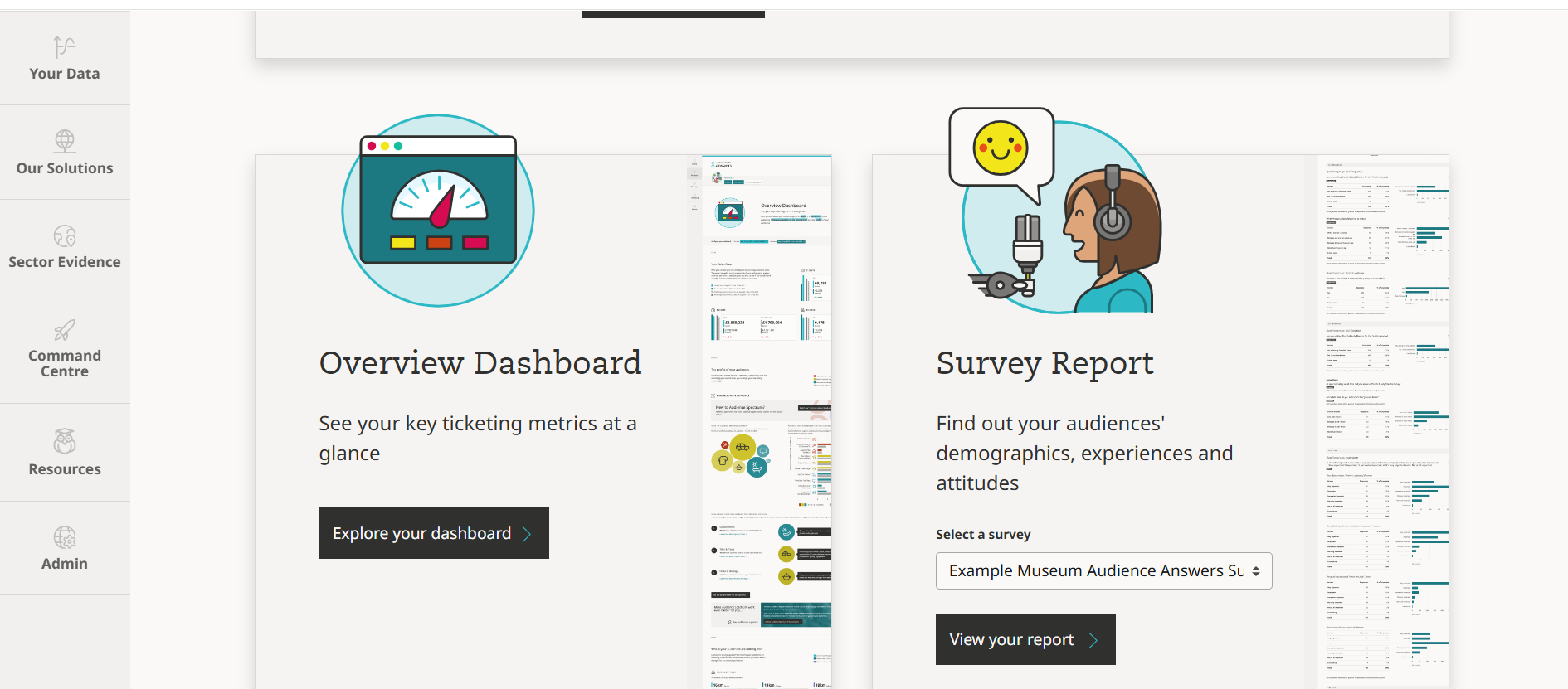
From the 'Select a survey' dropdown, choose the survey results you'd like to see, then 'View Your Report'
Setting the date range
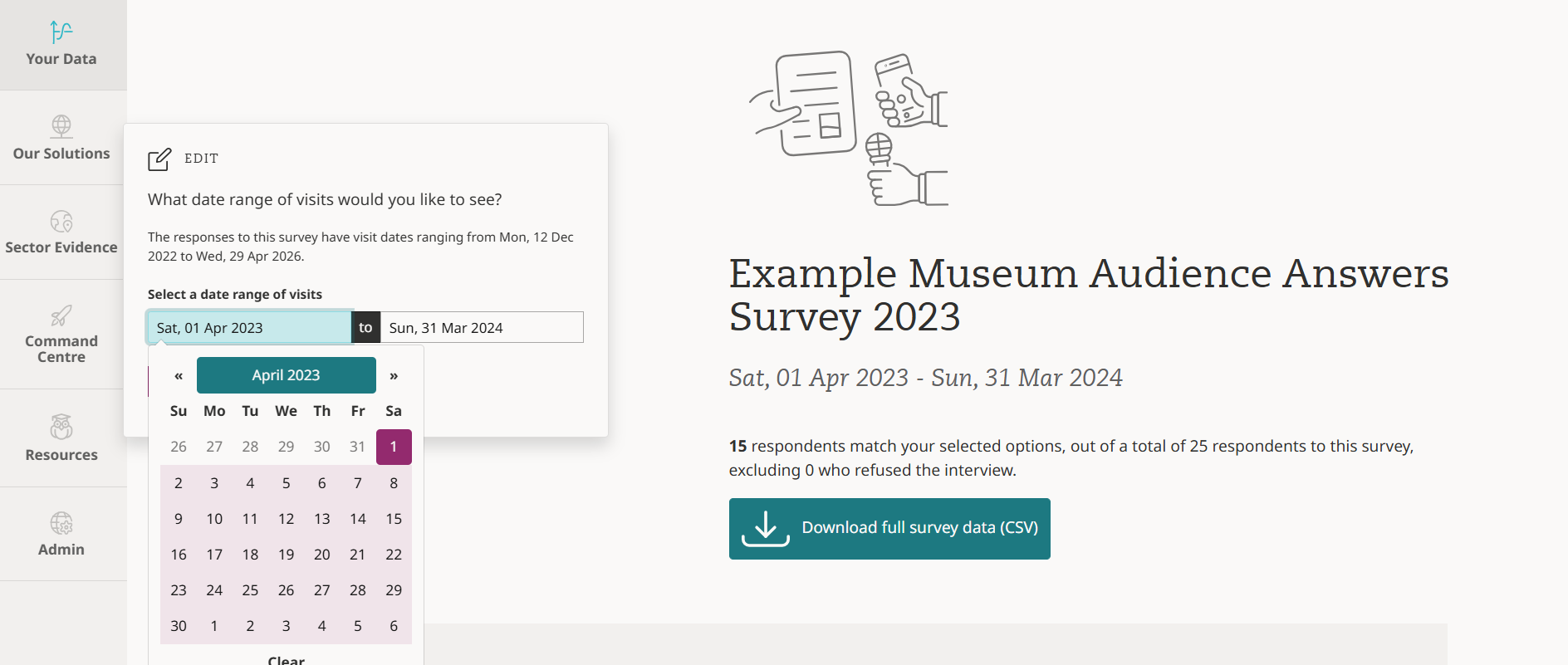
If you only want to see responses from visits in a specific date range, you can set this at the top of the survey report page:
Exploring your insights
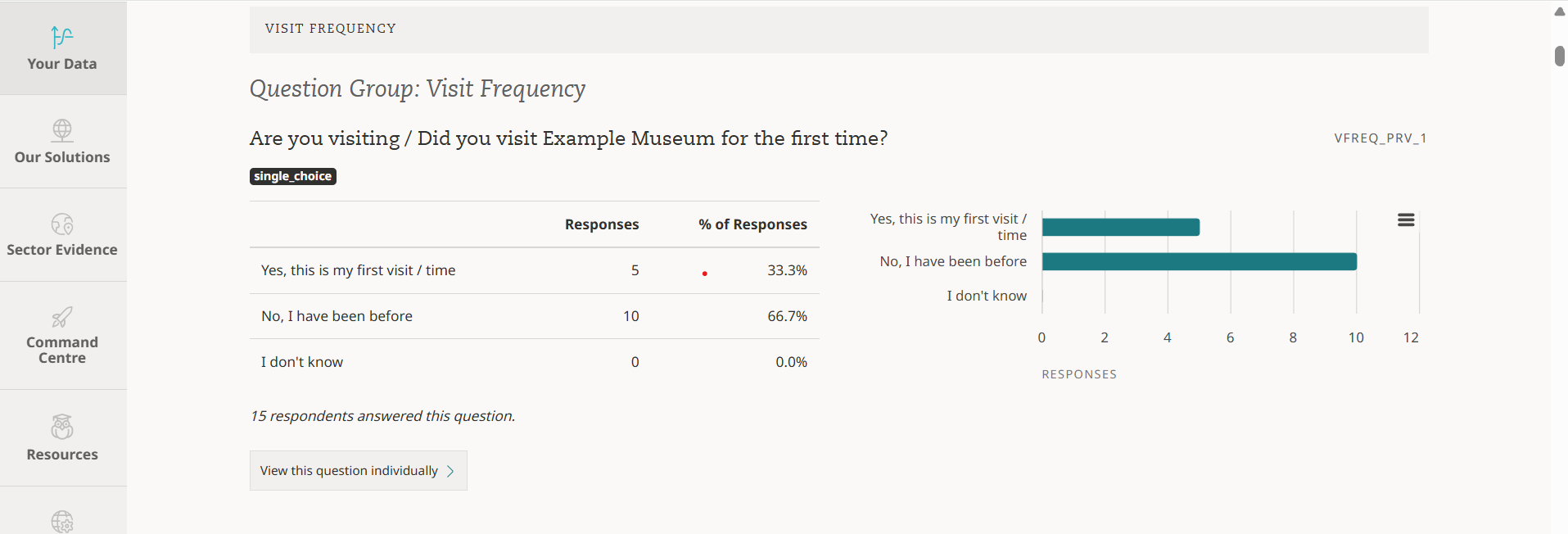
For each question in your survey, you will find a display like this, showing the question details and responses in both a table and chart format.
For more detail
At the top of the page, you'll see a 'Download full survey data' button. This will allow you to see, line by line, each individual respondent's answers.
It's also where you'll find responses to any bespoke questions you've added to your survey
You can watch a short tour of the survey dashboard here
Related Questions
- I have a new team member - how can I give them access to our Audience Answers dashboard?
- How do I access my organisation's Audience Answers dashboard?
- How do I find out the Audience Spectrum profile of my audience?
- How do I navigate the Audience Answers dashboard?
- Getting started: the ticketing insights dashboard
- As an ACE National Portfolio Organisation, can I collect Illuminate-compliant survey data through Audience Answers?
- How can I access my open-ended text survey responses?
- Is my Audience Answers Survey available in accessible formats?
- How many surveys should I collect?
Related Guides
- Collecting data via the Audience Answers tablet survey
- How to recruit, train and manage fieldworkers
- Top Tips | Commissioning Research and Evaluation
- Audience Answers surveys for organisations in Scotland
- A complete guide to Audience Answers surveys
- Our guide to good surveying for arts, culture and heritage organisations